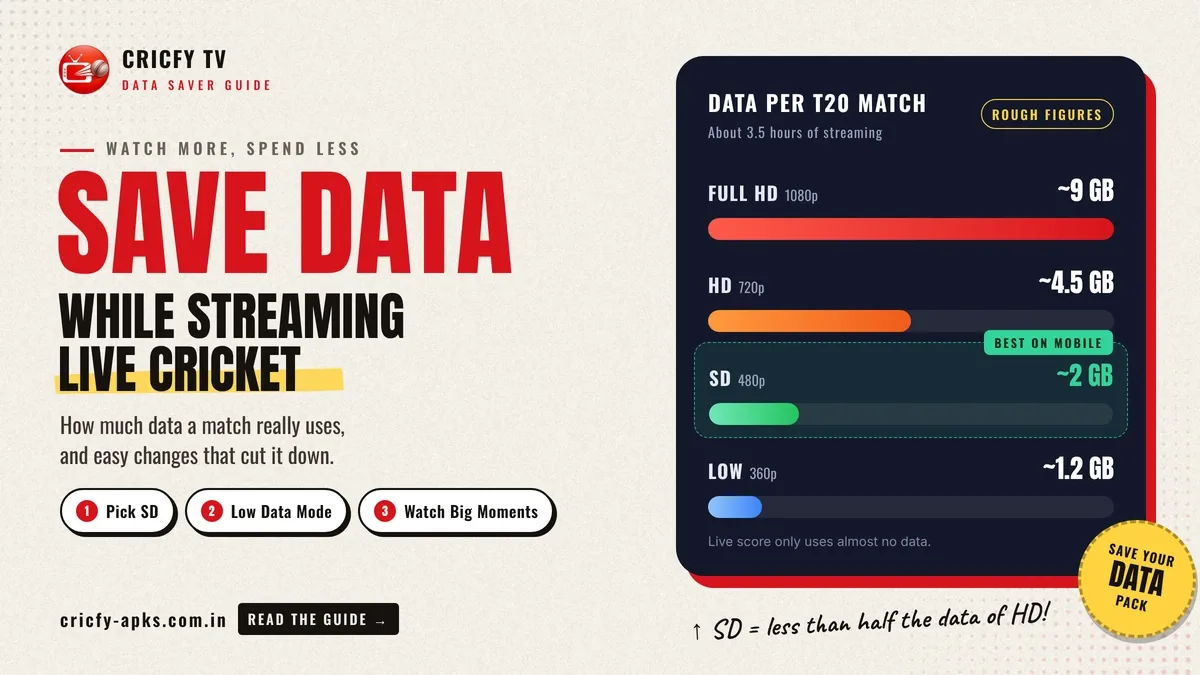
Learning how to save data while streaming live cricket makes a big difference if you watch on mobile data. A single T20 match lasts more than three hours, and an ODI can run for eight. Watch in HD the whole way through and your monthly pack can be gone in a weekend. This guide shows how much data a match really uses on Cricfy, and the easy changes that cut it down.
How Much Data Does a Match Use?
Data use depends on the video quality, not the app. These are rough figures for streaming video in general:
|
Quality |
Data per hour |
T20 match (about 3.5 hours) |
|
Low (around 360p) |
300 to 400 MB |
about 1.2 GB |
|
SD (480p) |
500 to 700 MB |
about 2 GB |
|
HD (720p) |
1 to 1.5 GB |
about 4.5 GB |
|
Full HD (1080p) |
2 to 3 GB |
about 9 GB |
The jump from SD to HD more than doubles your use. On a small phone screen, the difference in picture is much smaller than the difference in data.
Pick SD on Mobile Data
On Cricfy, the single biggest saving is choosing a lower quality. On a phone, SD still shows the ball, the batters and the score clearly. Open the player settings at the start of the match and set it to SD or low. Save HD for Wi-Fi at home.
Turn On Low Data Mode
If your Cricfy TV version offers a low data setting, switch it on whenever you leave Wi-Fi. It keeps the stream small without you having to change quality every time. Remember to turn it off when you're back on Wi-Fi so you get the sharper picture.
Follow the Score, Watch the Big Moments
You don't have to stream every ball. During the quiet middle overs, follow the live score in Cricfy instead, which uses almost no data. Switch to video for the powerplay, the death overs, and any time a match gets close. You'll see the moments that matter while using a fraction of the data.
Use Highlights for Games You Miss
If you can't watch live, a Cricfy APK highlights video covers the key moments in ten to twenty minutes. That uses far less data than a full replay, and you still see every big six and wicket.
Watch the Second Innings Live
In a T20 or ODI, the chase is usually where the drama is. If your data is tight, catch up on the first innings with the score and highlights, then stream the second innings live.
Stop Background Data Use
Other apps can quietly use data while you watch. On Android, open Settings, go to Network, and turn on Data Saver. This stops apps in the background from using data, while the app you're watching keeps working. Add Cricfy to the "unrestricted" list if the video stops.
Set a Data Warning
Your phone can warn you before you run out. Open Settings, go to Network or Mobile Data, and set a data warning at the amount you want to stay under. You'll get a message before you go over, so there are no surprises at the end of the month.
Use Wi-Fi Wherever You Can
Free Wi-Fi at home, work or college saves your pack for when you really need it. If you're on a shared network, choose SD anyway, since busy public Wi-Fi often can't handle HD smoothly.
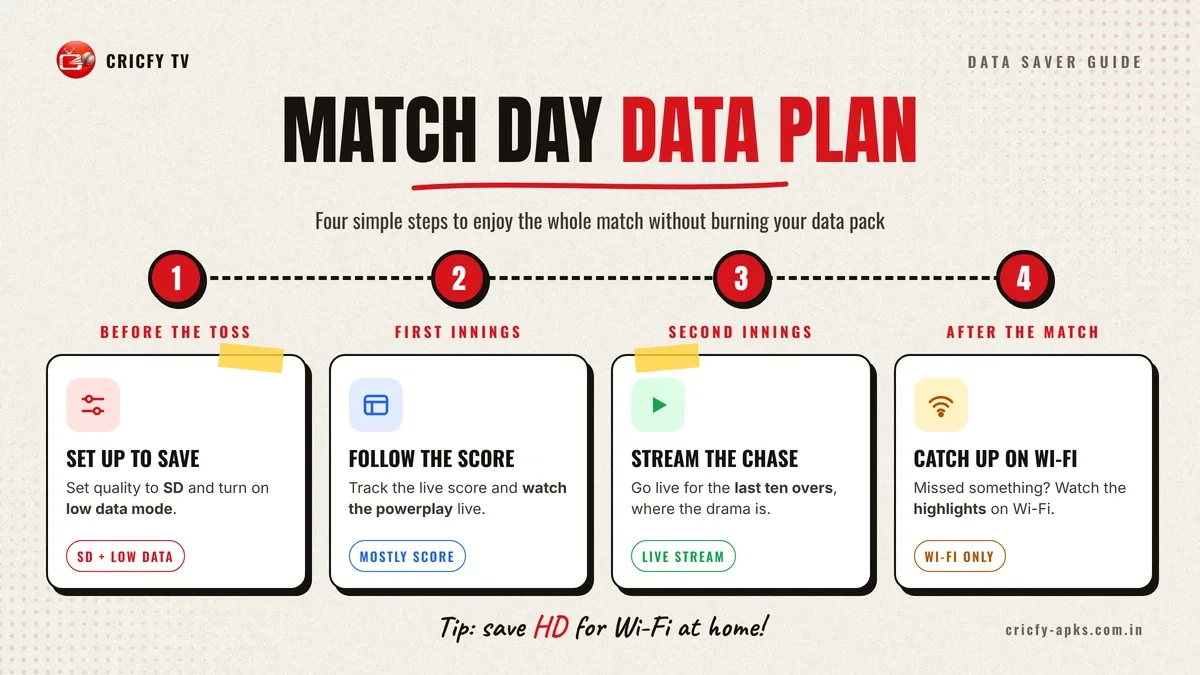
A Simple Plan for Match Day
-
Before the toss: set quality to SD and turn on low data mode.
-
First innings: follow the score, watch the powerplay live.
-
Second innings: stream live from the last ten overs.
-
After the match: watch highlights on Wi-Fi if you missed anything.